
Introduction
Beats headphones are celebrated for their outstanding sound quality and effortless compatibility with Apple devices. Connecting your Beats to a Mac can enhance your listening experience significantly. This guide provides clear and straightforward instructions to help you pair your devices without a hitch. From initial preparation to troubleshooting, we ensure a seamless connection process that optimizes your audio enjoyment.
Preparing Your Beats Headphones
Before initiating the pairing process, it’s essential to prepare your Beats headphones to ensure they’re ready for connection.
-
Charge Your Beats Headphones: Begin by fully charging your Beats to avoid interruptions caused by low battery during the pairing process.
-
Power On Your Beats: Once charged, press and hold the power button until you see the LED indicator blinking, signaling that your Beats are ready to pair.
With your headphones prepared, let’s move on to setting up your Mac for the pairing process.
Setting Up Your Mac for Pairing
To ensure a successful connection, preparing your Mac is as important as getting your Beats ready. This involves a few critical steps that set the stage for a smooth pairing.
-
Update Your macOS: Make sure your Mac runs the latest version of macOS, as updates often include necessary improvements for Bluetooth connectivity.
-
Enable Bluetooth on Mac: Navigate to the Apple menu, select ‘System Preferences’, then ‘Bluetooth’, and ensure it is turned on. At this point, your Mac is set to identify your Beats headphones.
Having prepared both your devices, you’re now ready to proceed with the pairing process itself.
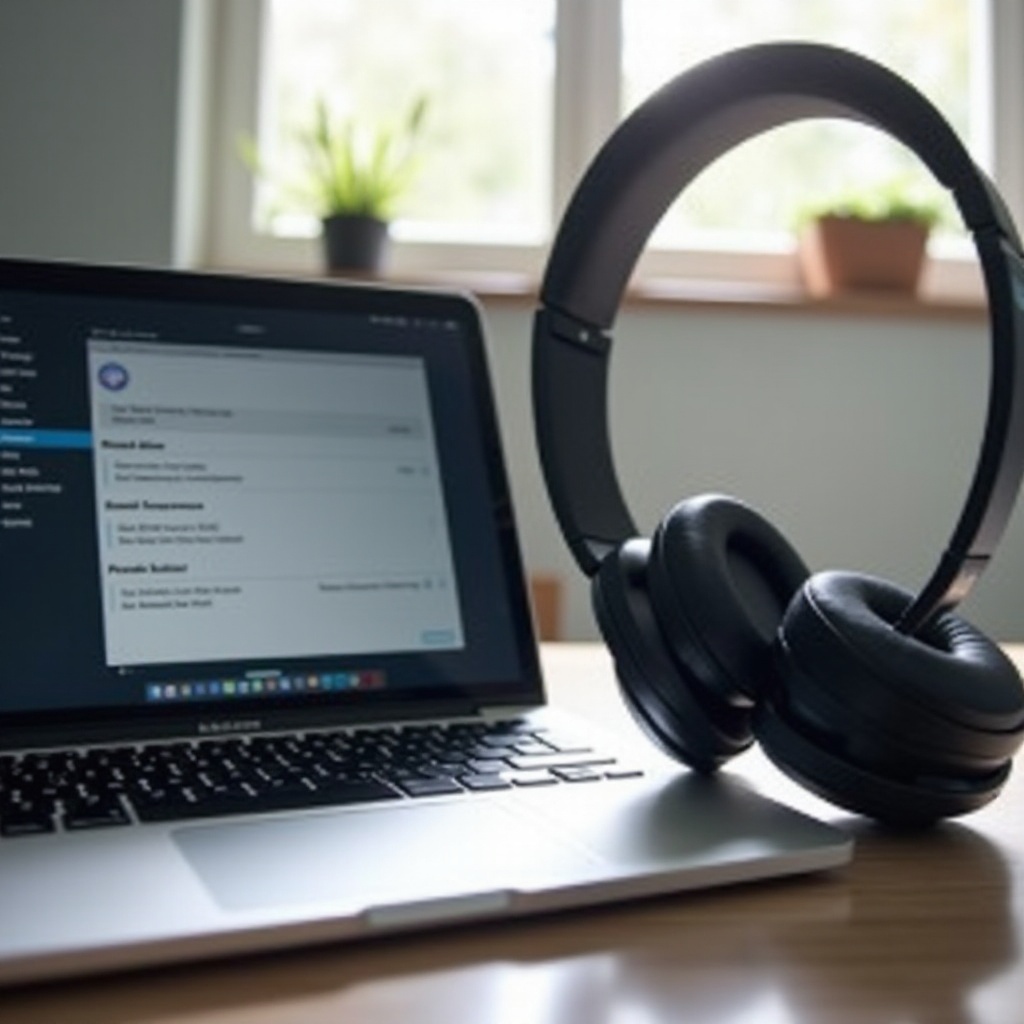
Pairing Beats Headphones with Mac
Pairing your Beats headphones to your Mac is now straightforward following the completion of the preparatory steps.
- Put Your Beats in Pairing Mode: Press and hold the power button until the LED indicator begins to flash. This indicates that your headphones are discoverable.
- Discover and Connect Beats on Mac: Open the Bluetooth settings on your Mac. You should see your Beats listed. Click on ‘Connect’ next to your device name to establish a connection.
- Reconnecting After Initial Pairing: Once paired, your Mac will remember your Beats for future connections as long as they’re within range. If reconnection issues arise, revisit the Bluetooth menu to reconnect manually.
With your Beats successfully paired, let’s address potential issues you might encounter and how to resolve them effectively.
Troubleshooting Common Issues
Sometimes, despite careful preparation, issues can occur. Here are proven solutions to the most common problems.
-
Solving Connection Problems: If your Beats do not appear in the Bluetooth menu, restart both your Mac and the headphones. Also, ensure there are no other Bluetooth devices interfering with the connection.
-
Improving Audio Quality: Should you experience poor sound quality, minimize potential signal interference by keeping your devices close or try re-pairing them for a clearer connection.
-
Addressing Firmware Updates: Regularly update your Beats’ firmware through the Beats app to avoid compatibility issues. Keeping your firmware current ensures optimal performance and connectivity.
Once troubleshooted, you can enhance the music experience further through additional tips that maximize sound quality.
Enhancing Your Audio Experience
After a successful pairing, you can optimize your listening experience with a few additional adjustments.
-
Customize Sound Settings on Mac: Utilize Mac’s built-in equalizer to tailor sound settings to your liking, improving audio output significantly.
-
Switching Beats Between Devices: For a smooth transition between different devices, remember to disconnect from the current device before connecting to a new one. This approach avoids any confusion or connection failures.
Armed with these enhancements, you’re now ready to enjoy an exceptional audio experience every time you use your Beats with your Mac.
Conclusion
Connecting your Beats headphones to your Mac is a simplified process, as this guide shows. With careful preparation and a systematic approach, you can enjoy high-quality sound effortlessly. By addressing potential issues and optimizing settings, you unlock a world of enhanced audio experiences with your Beats and Mac device.
Frequently Asked Questions
Why won’t my Beats connect to my Mac?
Ensure Bluetooth is on and devices are in range. Restart both devices and try pairing again.
How do I reset my Beats headphones?
Hold the power and volume down buttons for 10 seconds. Release when the LED flashes.
Can I pair multiple Beats devices with my Mac?
Yes, but switch by disconnecting the current device in Bluetooth settings before connecting a new one.